Growth
Automations
Rules that email families, create tasks and alert your team when something happens, so follow-ups go out even when nobody is at a desk.
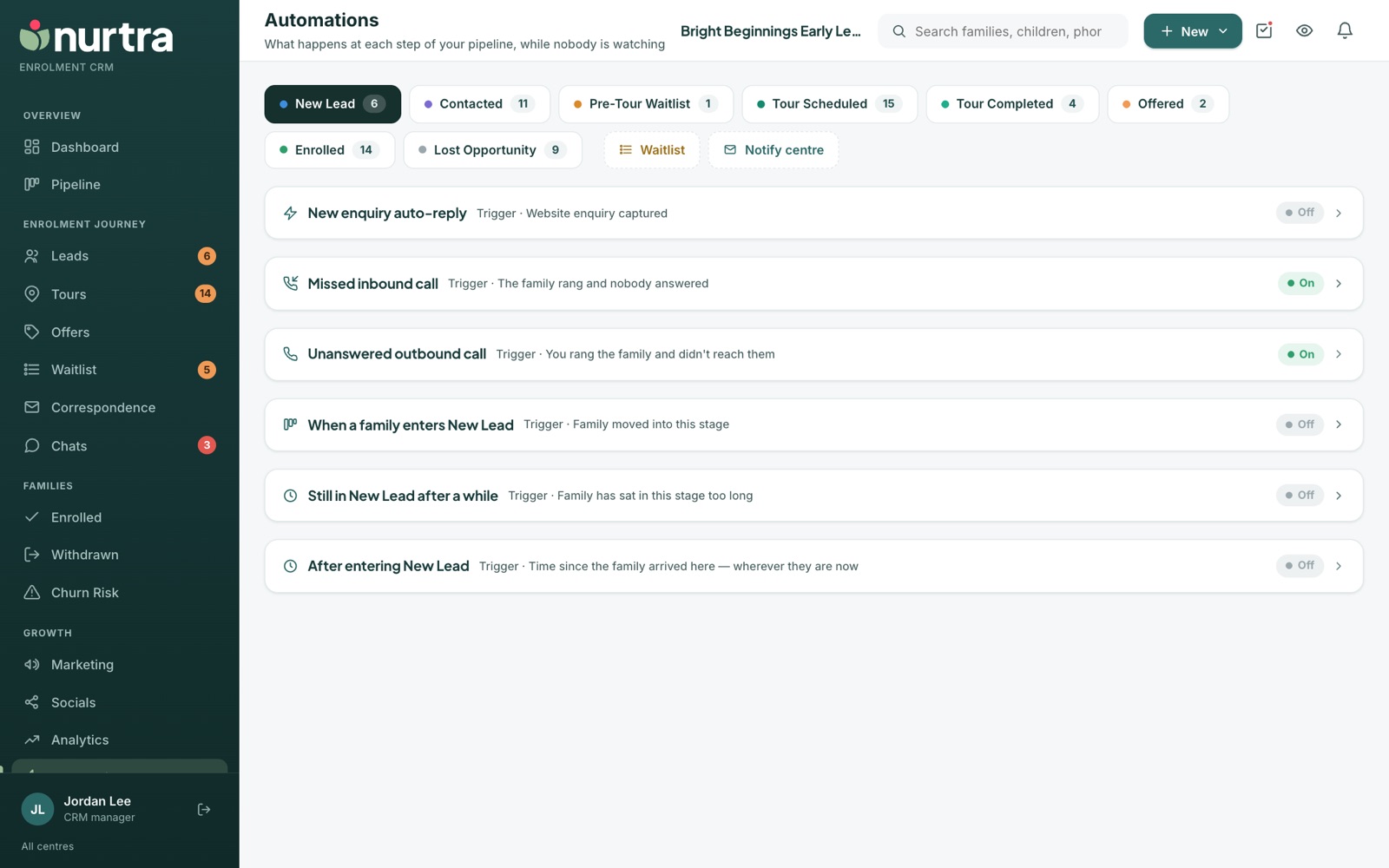
How the page is laid out
- Tabs across the top follow your pipeline stages (New Lead, Contacted, Tour Scheduled and so on), each with a count, plus Notify centre. The waitlist keep-in-touch rule sits under the Waitlisted stage.
- Each stage tab lists its rules with the trigger and an On/Off state. Everything is off until a manager arms it.
Built-in rules
| Rule | Tab | What it does |
|---|---|---|
| New enquiry auto-reply | New Lead | Emails a family who enquires through a website form. Manually captured enquiries are not auto-answered. |
| Missed inbound call | New Lead | Creates a Return the family's call task due two hours later, whatever the stage. On from the start. |
| Tour booked confirmation | Tour Scheduled | Emails the family with a calendar invitation for Google, Apple or Outlook. |
| Director's tour task | Tour Scheduled | Gives the centre's directors a Host the centre tour task. On from the start. |
| Tour reminder | Tour Scheduled | Emails or texts the family before each tour. Add several (for example 2 days, 1 day and 4 hours before) with the + on the first row. |
| Family changed their tour | Tour Scheduled | Tells the people you tick when a family moves or cancels their own tour, with old and new times. |
| Waitlist keep-in-touch | Waitlisted | Writes to every waiting family on a repeating cadence. |
| Notify centre | Notify centre | Emails the hosting centre when a tour is booked or moved, with who is coming and how to reach them. |
Rules every stage has
- When a family enters [stage]: runs when a family is moved into the stage. A family re-entering within seven days is skipped, so a corrected drag never fires twice.
- Still in [stage] after a while: fires once after a family has sat in the stage for a set time (3 days up to 60 days). Families already far past the line are left alone when you switch it on.
- After entering [stage]: fires a set time after the family arrived, wherever they are now. Switch on only while the family is still in this stage to limit it.
Set up a rule
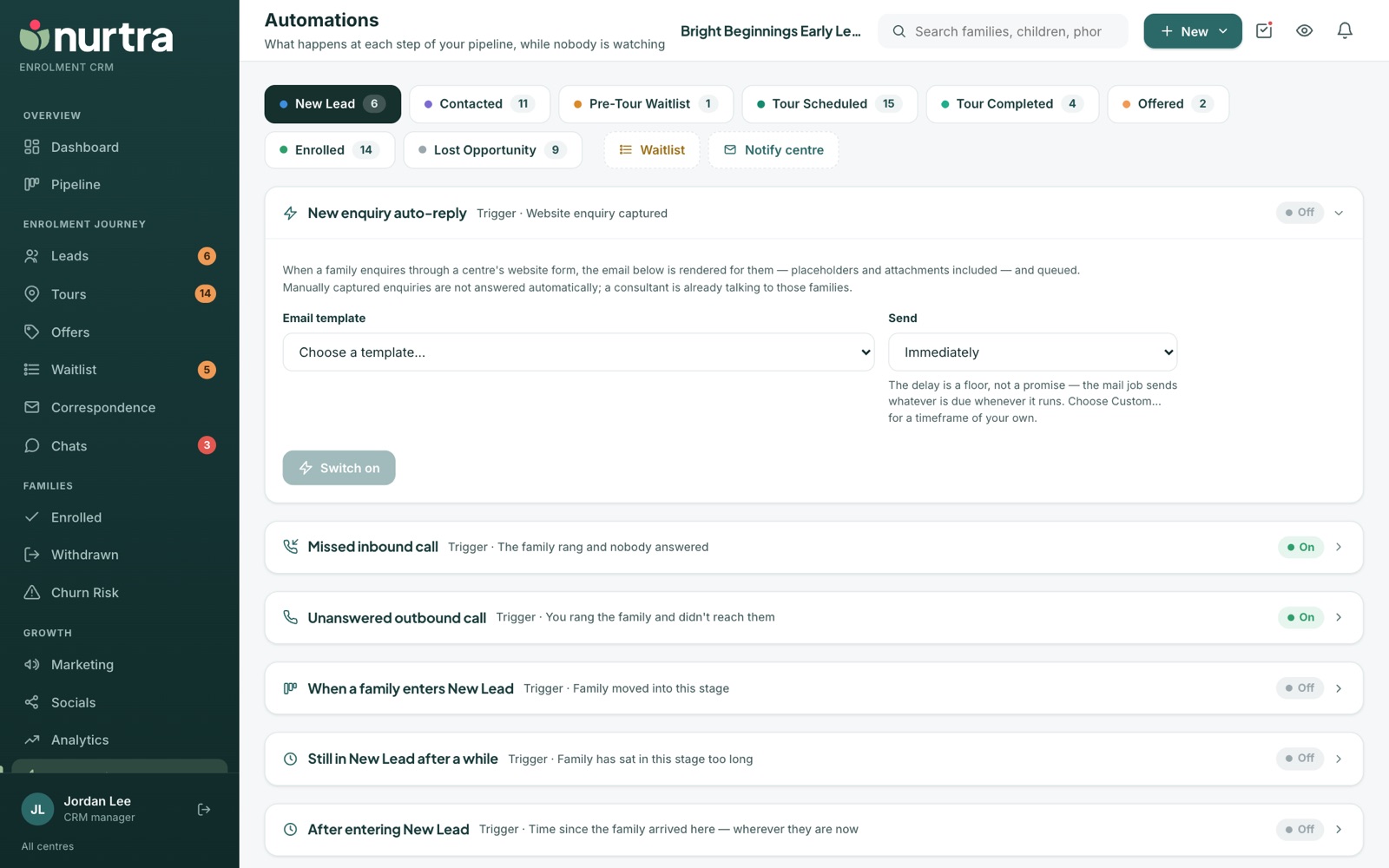
- Open the stage tab and click the rule.
- Choose an email template. The eye icon previews it as the family will read it.
- Choose the send time: immediately, after 5 or 15 minutes, 1 or 4 hours, or Custom (up to 30 days).
- Optionally add an SMS and a survey (the survey link rides the email).
- Optionally add one or more tasks: title, type, due (same day to a week later, at a time), and assignee (the consultant, a centre director, a CRM manager, an admin assistant or one named person).
- Optionally alert your team: the centre, organisation, consultant, CRM managers, directors or any address.
- Press Save changes and switch the rule on.
DelaysHeld mail isn't withdrawn if the family moves on first. Use waits of days only for stages families settle in, not ones they pass through.
Updated 2026-11-06 · nurtra.ai