Settings
Team & Access
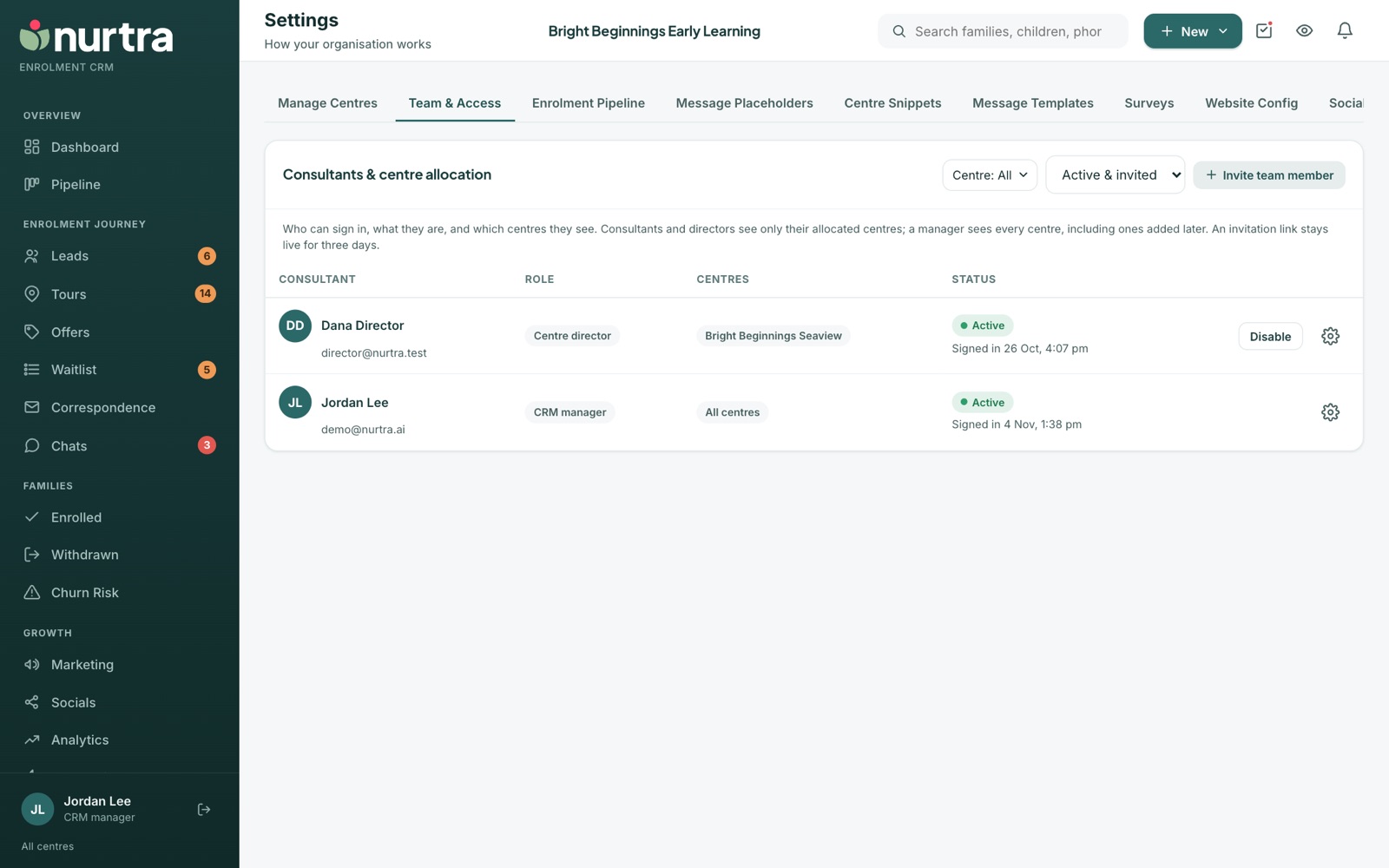
Who can sign in, what role they have, and which centres they see.
Invite someone
- Press Invite team member.
- Enter their name, email and job title.
- Pick a role, then any extra areas under Also give access to. See Roles and permissions.
- Allocate centres (managers, Marketing and Reporting see every centre automatically).
- Send. The invitation link stays live for three days.
Managing people
- Filter by Active & invited, Active, Invited or Disabled, and by centre.
- Each row shows the role, centres, status and when they last signed in.
- Edit changes someone's name, job title, role and centres. The job title is what the consultant's position placeholder (
{{consultantposition}}) prints when that person sends a message. Leave it blank and it prints their role, for example "CRM manager". Someone already signed in sees a new title after they refresh the page. - Resend invite for anyone who hasn't signed in.
- Disable ends their sign-in everywhere and keeps their history. Re-enable later if needed.
Updated 2026-11-06 · nurtra.ai