Enrolment journey
The family record
Everything about one family on one page: enquiry details, children, communication, tasks, documents and the full timeline.
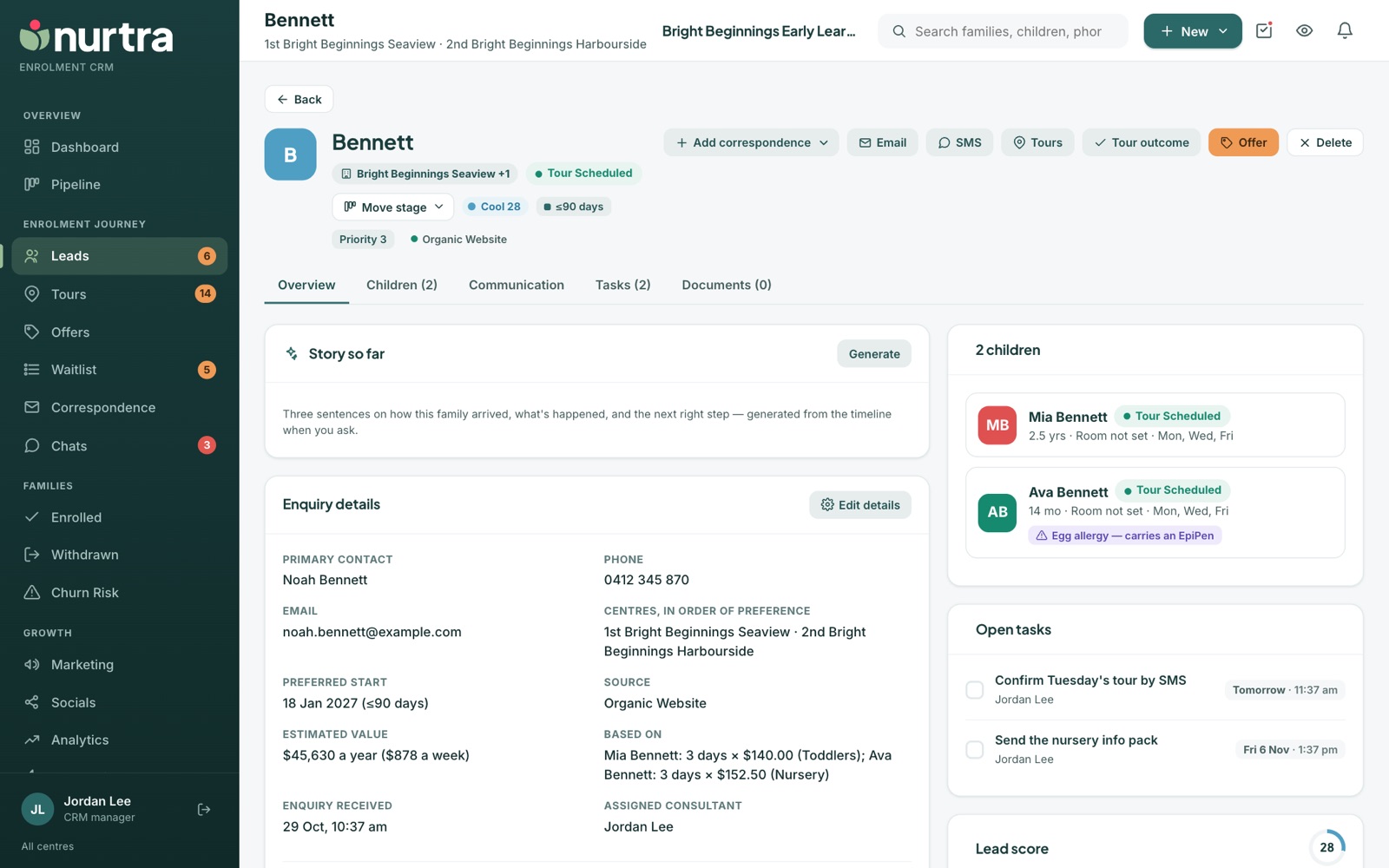
Header and actions
- Pills show the centre, stage (one per child if they differ), heat score, start window, priority, risk and source.
- A banner appears when the family matched the bad-debt report, with the date it was checked.
- Action buttons: Add correspondence, Email, SMS, Tour, Offer and Delete.
Overview tab
- Story so far: an AI summary of the timeline in one paragraph, saved on the record so the next consultant catches up quickly. Press Refresh to rewrite it. Always check details against the record.
- Enquiry details: primary contact, phone, email, centre, second guardian, preferred start, source, estimated value (with how it's calculated), when the enquiry arrived and the assigned consultant.
- Consultant notes: standing notes on the family, dated on the timeline each time they change.
- Recent activity, children, open tasks (tick them off in place) and the lead score broken into engagement, responsiveness, recency and start-date intent.
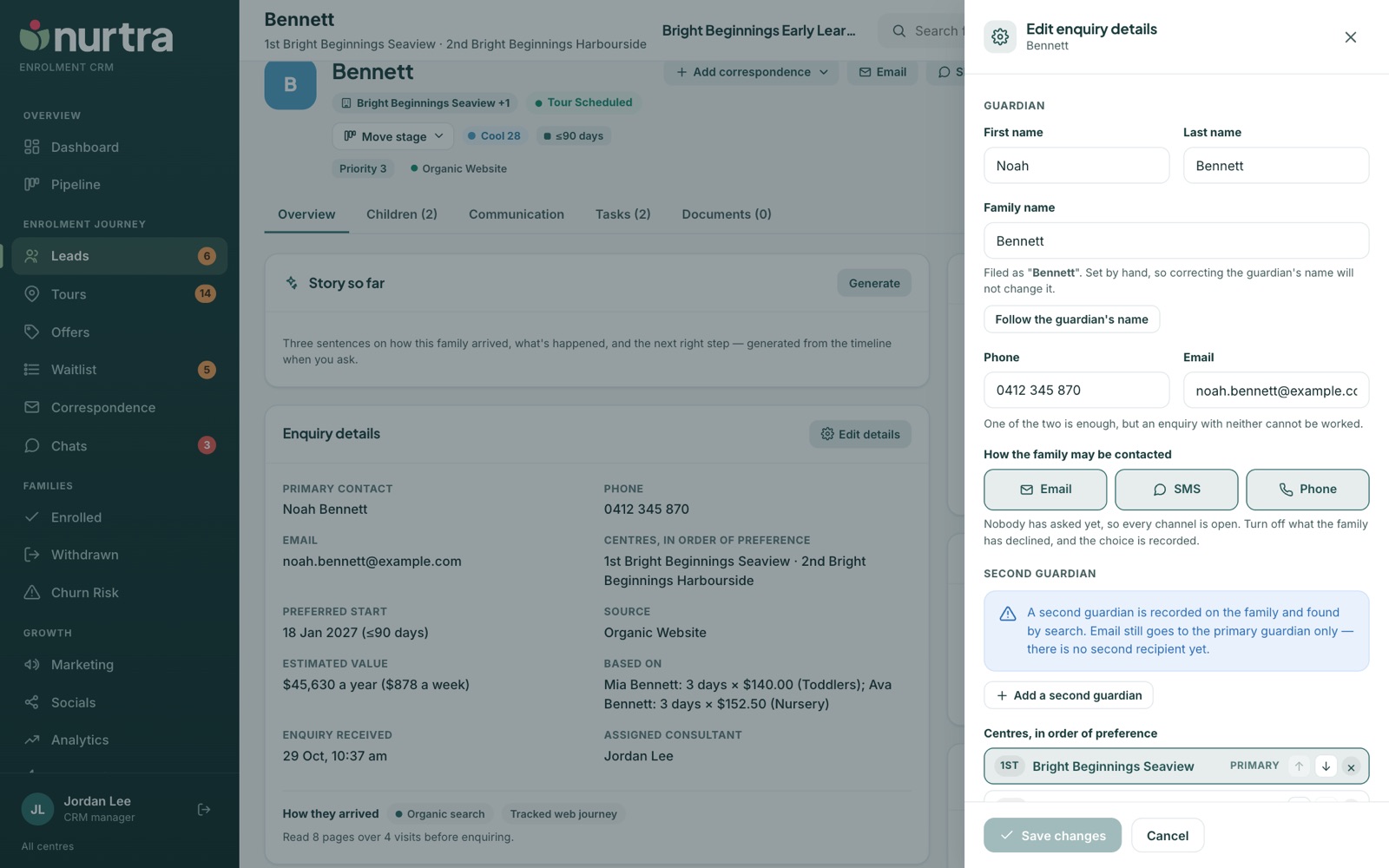
Edit enquiry details
- Press Edit details on the Enquiry details card.
- Correct guardians, family name, phone and email, and record how the family may be contacted (email, SMS, phone).
- Reorder centres of preference. Moving the 1st centre re-places the children into its rooms by age.
- Change start date, priority, consultant, source or attributes, then Save changes.
Contact preferencesOnce a preference is recorded, automations and bulk messages skip a channel that's off. A person sending one message is warned rather than stopped, because a tour time still has to reach the family.
Children tab
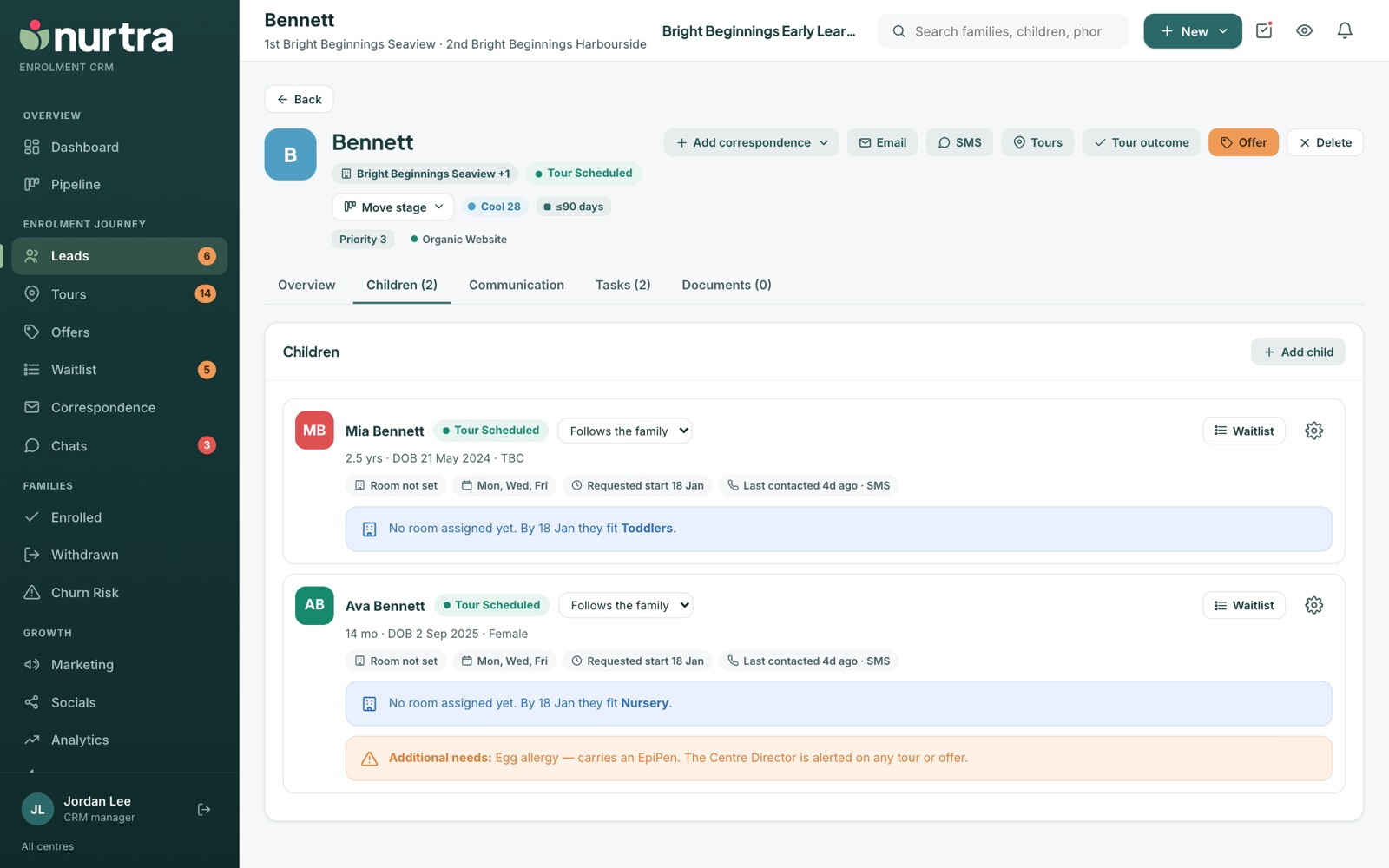
- Each child shows age, date of birth, room, days, requested start and when they were last contacted.
- Each child has its own stage picker once there are siblings. Follows the family keeps them in step.
- Nurtra suggests the room the child fits by their start date and shows that room's vacancies.
- Add child adds a sibling.
Communication tab
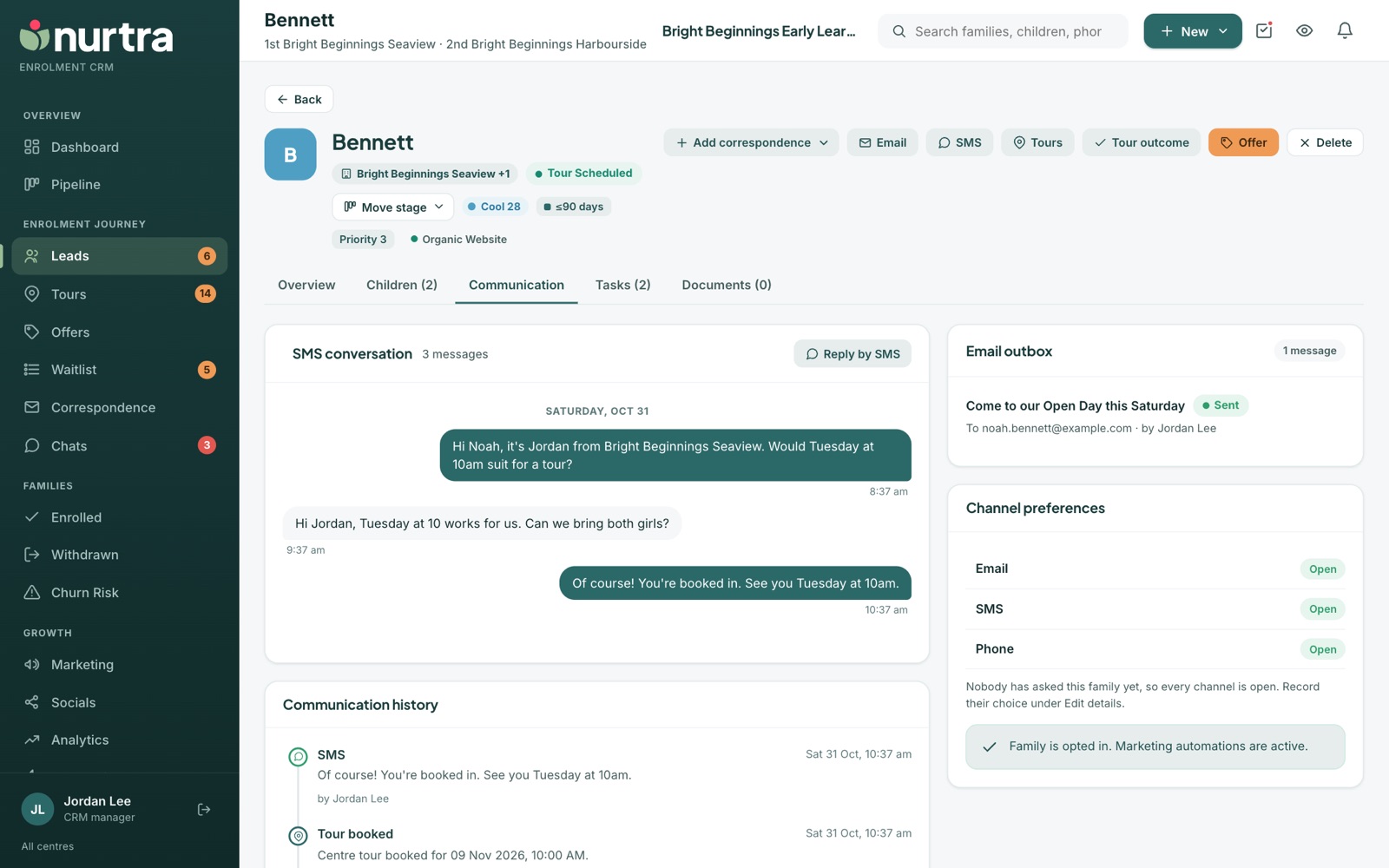
- The SMS conversation, with a Reply by SMS button. Family replies land here as they arrive and create a task for the consultant.
- The full communication history: calls, emails (with opened status), stage changes, tasks, tours and notes.
- The family's contact preference and when it was recorded.
Tasks tab
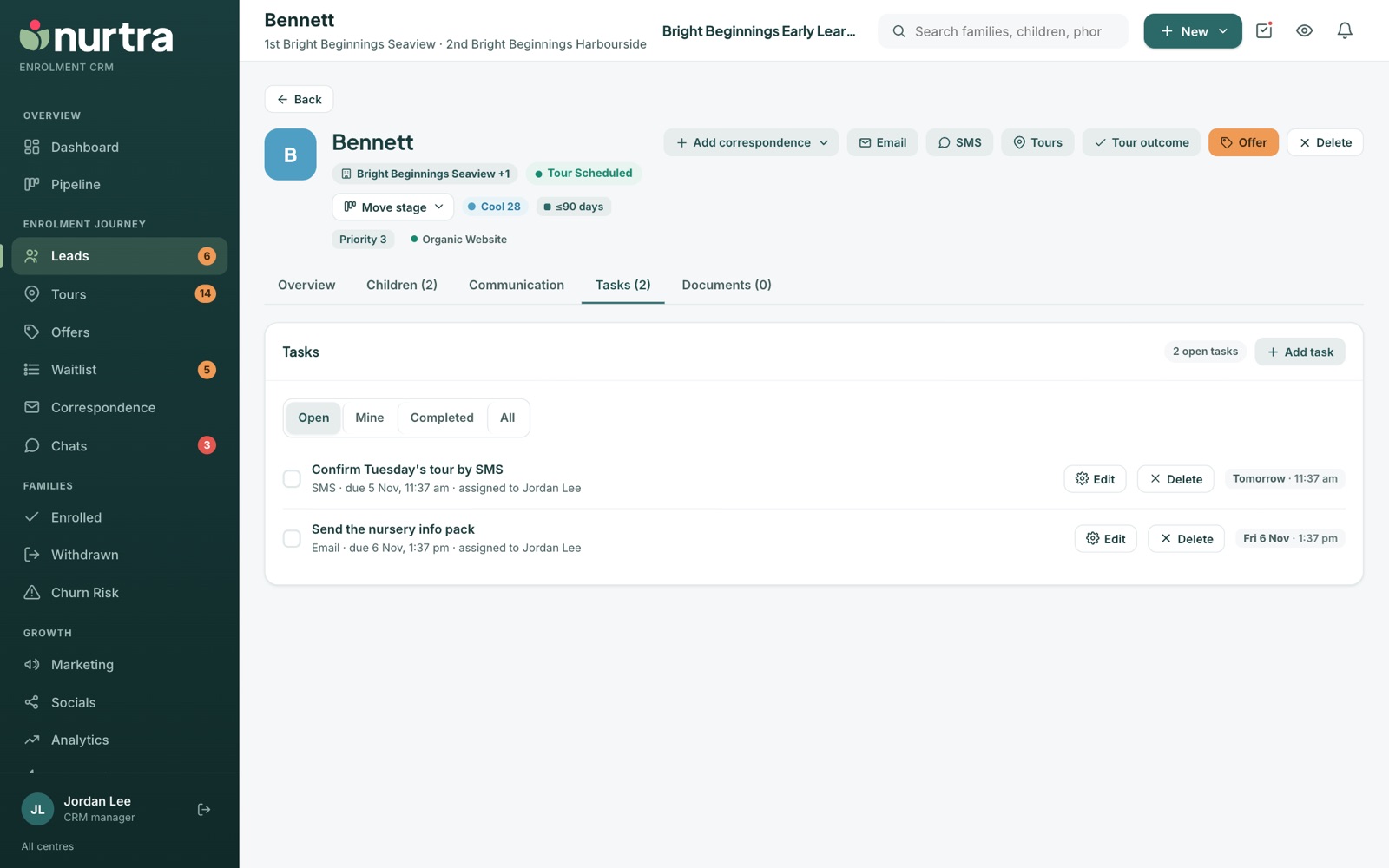
- Filter Open, Mine, Completed or All.
- Each task shows the child, type, due time and owner, with Edit and Delete.
- Reassign a task here, for example to hand a tour to a colleague covering that day.
Documents tab
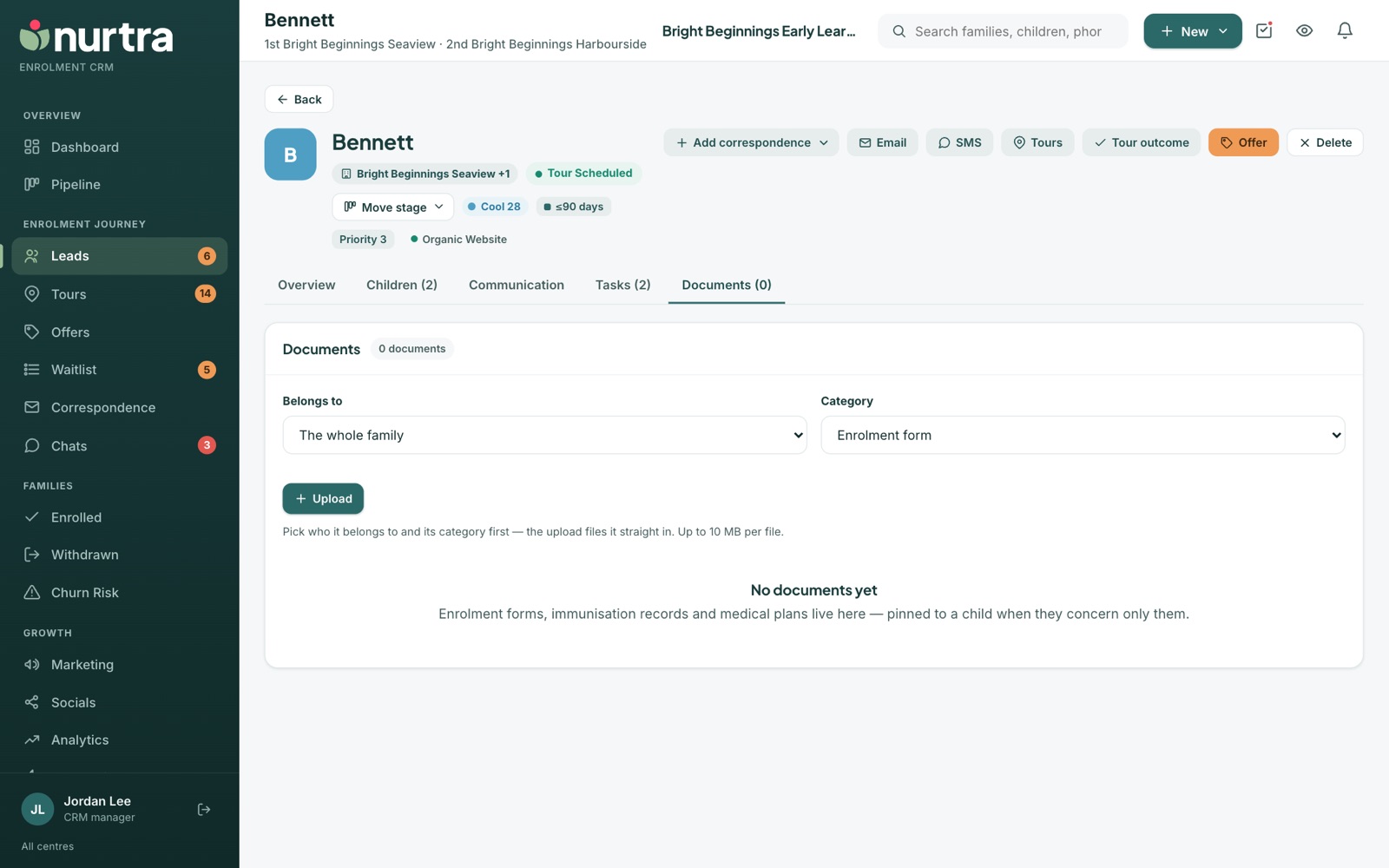
- Choose who the file belongs to: the whole family or one child.
- Choose a category: enrolment form, immunisation record, medical/allergy plan, birth certificate, court order or other.
- Press Upload. Files up to 10 MB.
- Press View to open a file through a short-lived private link.
Withdraw, reinstate and delete
- Withdraw (enrolled families): records the reason, leaving date and a note. See Withdrawn.
- Reinstate: CRM managers only.
- Delete: archives the family with a reason. Restore it from Deleted leads on the Leads list.
Updated 2026-11-06 · nurtra.ai