Your profile
Your photo, your password and your tours calendar. Open it by clicking your name at the bottom of the sidebar.
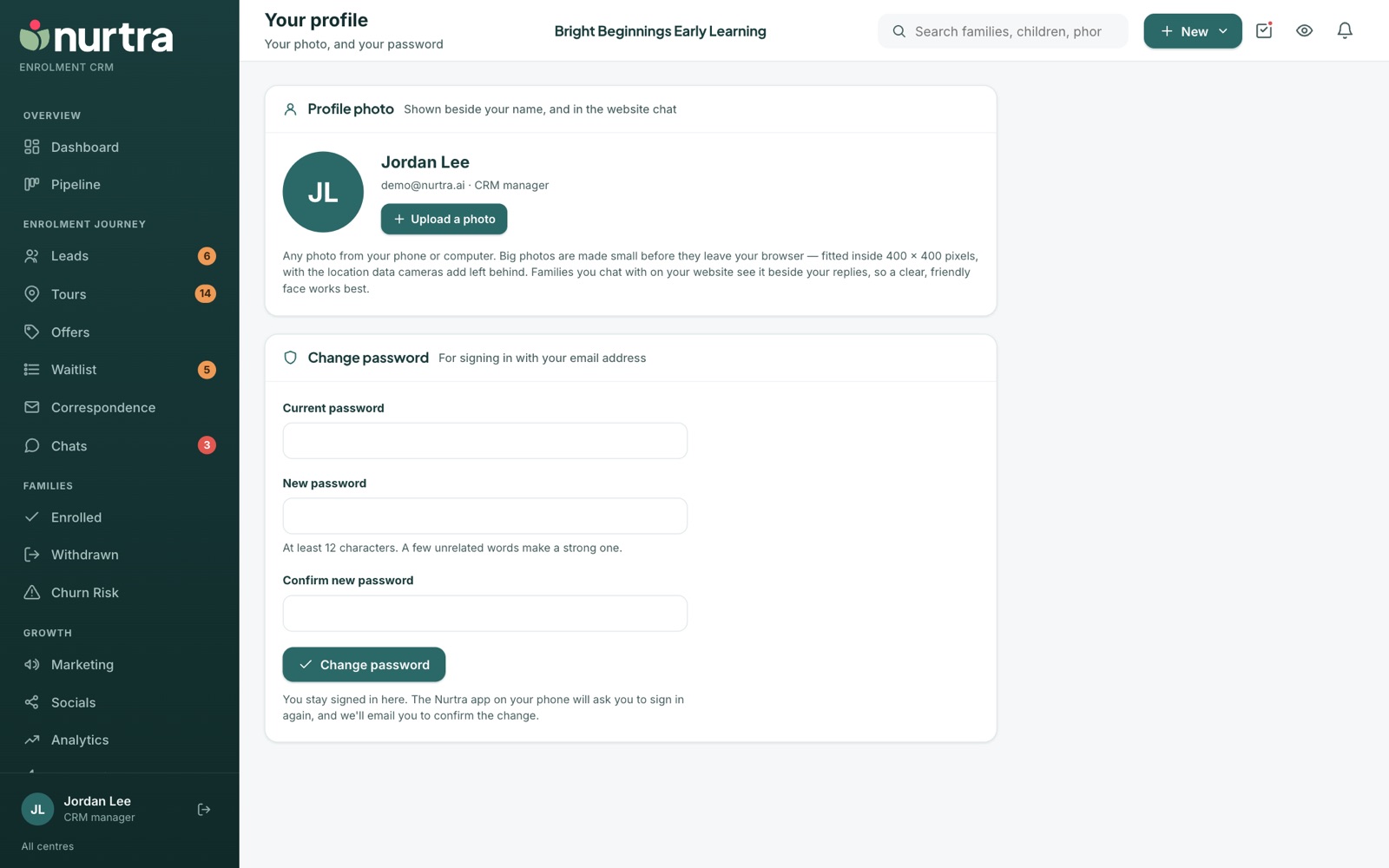
Profile photo
- Your photo replaces your initials across Nurtra and appears beside your replies in website chat, so a clear, friendly photo works best.
- Large photos are resized in your browser to fit 400 × 400 pixels, and camera location data is removed before upload.
- Use Change photo or Remove photo.
Change your password
- Enter your current password.
- Enter a new password of at least 12 characters. A few unrelated words make a strong one.
- Confirm it and press Change password.
You stay signed in on the web. The Nurtra mobile app asks you to sign in again, and you get an email confirming the change.
Tours in your calendar
See your tours in Outlook, Google Calendar or Apple Calendar without adding them one by one. Booked tours appear, and rescheduled or cancelled ones move or disappear on their own. There are two ways to do it. First, under Which tours, choose Every tour at my centres or Only tours I host, or for families assigned to me. You can change this later.
Calendar invites by email
The quickest way, especially for Outlook: each tour reaches your calendar as soon as the email arrives.
- Press Turn on calendar invites. Nurtra tells you how many invites it will send for your upcoming tours.
- Confirm. After that you get one email each time a tour is booked, moved or cancelled.
- If your calendar waits for an answer, open the email and accept it. You only need to do this if the tour doesn't appear by itself.
- Invites follow your access in Nurtra. If a tour stops being one of yours, for example the family is assigned to someone else, it's taken out of your calendar.
- Turn off removes your upcoming tours from your calendar and stops the emails. Tours that have already happened stay.
- Families imported from a spreadsheet with a tour already booked don't send an invite until that tour next changes.
Calendar link
No emails, but slower: your calendar app decides when to check for changes.
- Press Create my calendar link.
- Add it to your calendar:
- Outlook on the web or Microsoft 365: open your calendar, choose Add calendar, then Subscribe from web. Paste the link, name it "Nurtra tours" and import.
- Outlook on a desktop or Apple Calendar: press Open in Outlook or Apple Calendar, or use Add calendar → From internet.
- Google Calendar: press Add to Google Calendar.
- Your calendar app checks the link on its own schedule. Outlook and Google check every few hours, and sometimes take a day, so a tour booked for later today can take a while to appear. Nurtra always has it straight away.
- If your calendar subscribes to the link and you also have invites on, each tour shows twice. Use one or the other.
- Finished tours from the last 30 days stay in your calendar marked "Toured" or "Did not attend". Tours are listed up to six months ahead.
- The link is private: anyone with it can see your tours. If it gets shared, press Make a new link and the old one stops working. Turn off stops it altogether.
- The calendar follows your access in Nurtra. If you lose a centre or your account is disabled, its tours stop showing at the next check.
Switching organisation
If you work across more than one organisation, give each account the same mailbox with a tag (for example name+bondi@… and name+castlehill@…). Switch organisation then appears under your name and moves you between them without signing out.
Updated 2026-11-06 · nurtra.ai