Settings
Website Config
The chat widget, enquiry form and tracking snippet for your websites. Three tabs: Chat, Enquiry Form and Website Tracking.
Chat
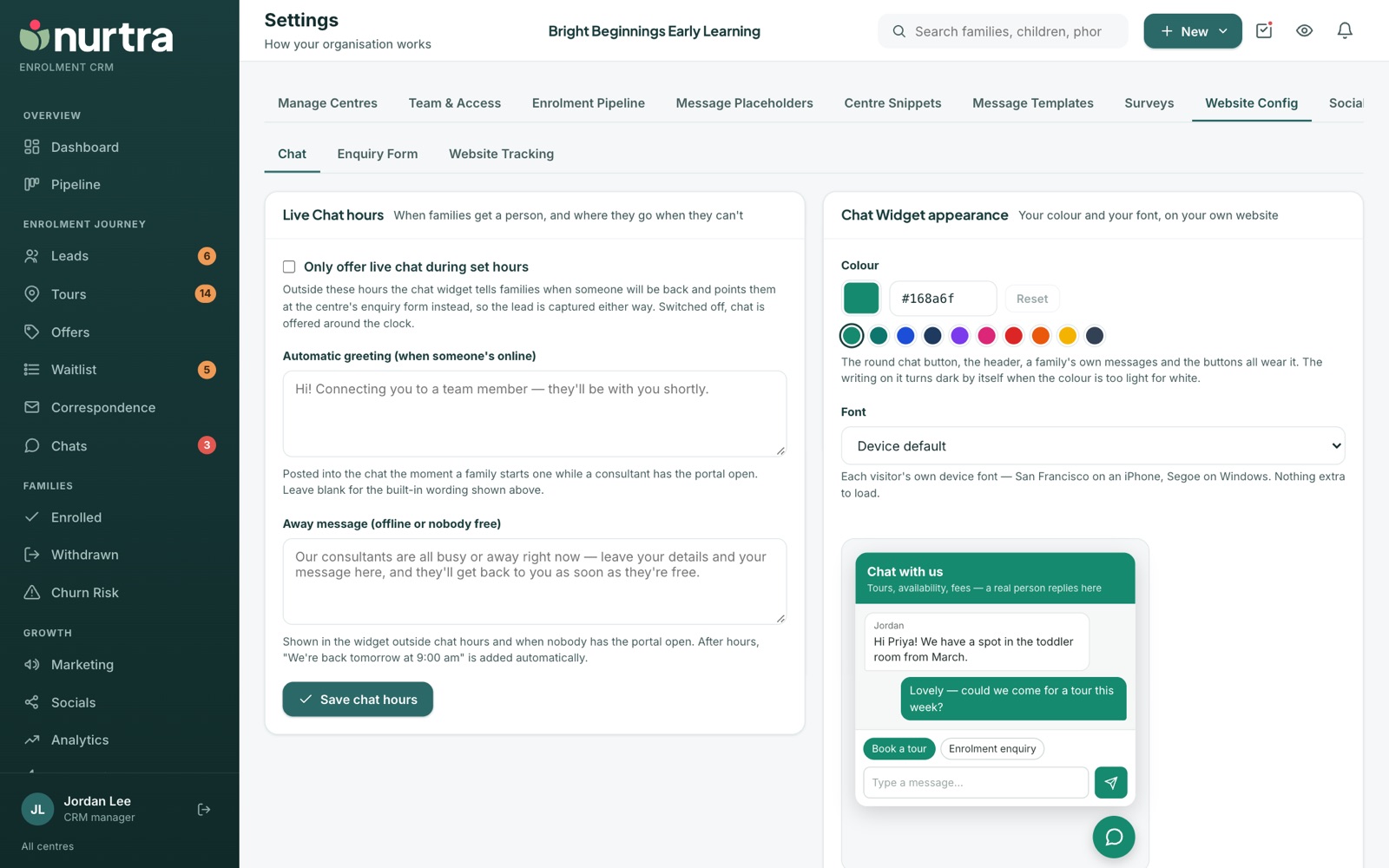
Live chat hours
- Switch on Only offer live chat during set hours.
- Tick the days someone answers, set From and Until, and choose the timezone.
- Optionally write an automatic greeting (posted when a consultant has the portal open) and an away message.
- Press Save chat hours.
Outside hours, the widget says when someone will be back and points families to the enquiry form, so the lead is still captured.
Widget appearance
- Pick a colour and a font, or Match my website. The preview updates as you go.
- Press Save appearance. Every site updates within about five minutes, with nothing to paste again.
Enquiry Form
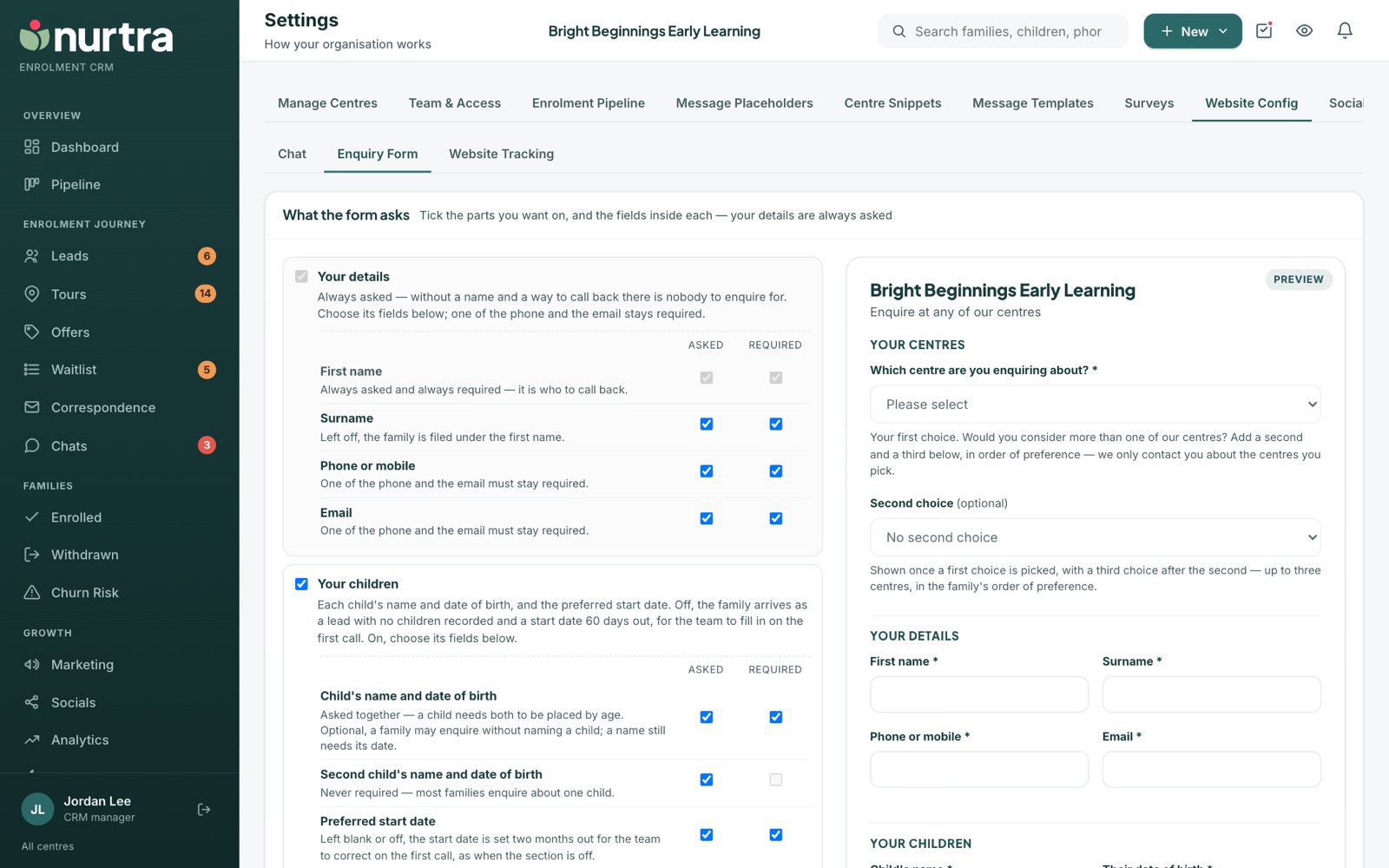
- One embed code for an organisation-wide form where families pick their centre and up to two more choices.
- Tick which sections every form asks: your details (always), children, tour booking and attributes.
- For each field, set Asked and Required. Only first name is fixed, and one of phone or email must stay required.
- Add organisation-level custom questions and a thank-you page.
- The organisation-wide book-a-tour form lives here too.
How the form looks
Make the forms match your website. One look covers every enquiry and book-a-tour form, each centre's and the organisation-wide ones, and the family's personal booking link.
- Accent colour for buttons, picked options, ticks and section headings. Writing on a button turns dark by itself when the colour is too light for white. If your chat widget has a colour, Use my chat colour copies it.
- Font: pick the one your website uses. The form sits in a frame, so it can't borrow your page's font by itself.
- Page background: light grey, white, transparent (your page shows through) or a colour of your own.
- Form style: a card with a border and shadow, or flat, sitting straight on the page.
- Width (narrow, standard, wide or full), corners (round, soft or square) and text size (standard or large).
The preview underneath draws the form on a stand-in web page as you choose. Press Save look and your forms wear it within a minute, with nothing to paste again.
A form that fits its spaceThe embed codes now size the form's frame to fit: no blank space under a short form and no scrollbar inside a long one, including after a family sends it. Paste a form's embed code again (from here, or from the centre in Manage Centres) to get this. Older embeds keep working as before.
Website Tracking
- An invisible snippet that counts visits into Analytics and links a family's browsing to their enquiry.
- It sends a
nurtra_enquiryevent to your Google Tag Manager data layer so a conversion tag can fire. - Step-by-step instructions for Wix, Squarespace and Framer sit beside the snippet.
Updated 2026-11-06 · nurtra.ai