Enrolment journey
Calls, emails and SMS
Everything you send or record from a family's record, and how it lands on the timeline.
Log a call
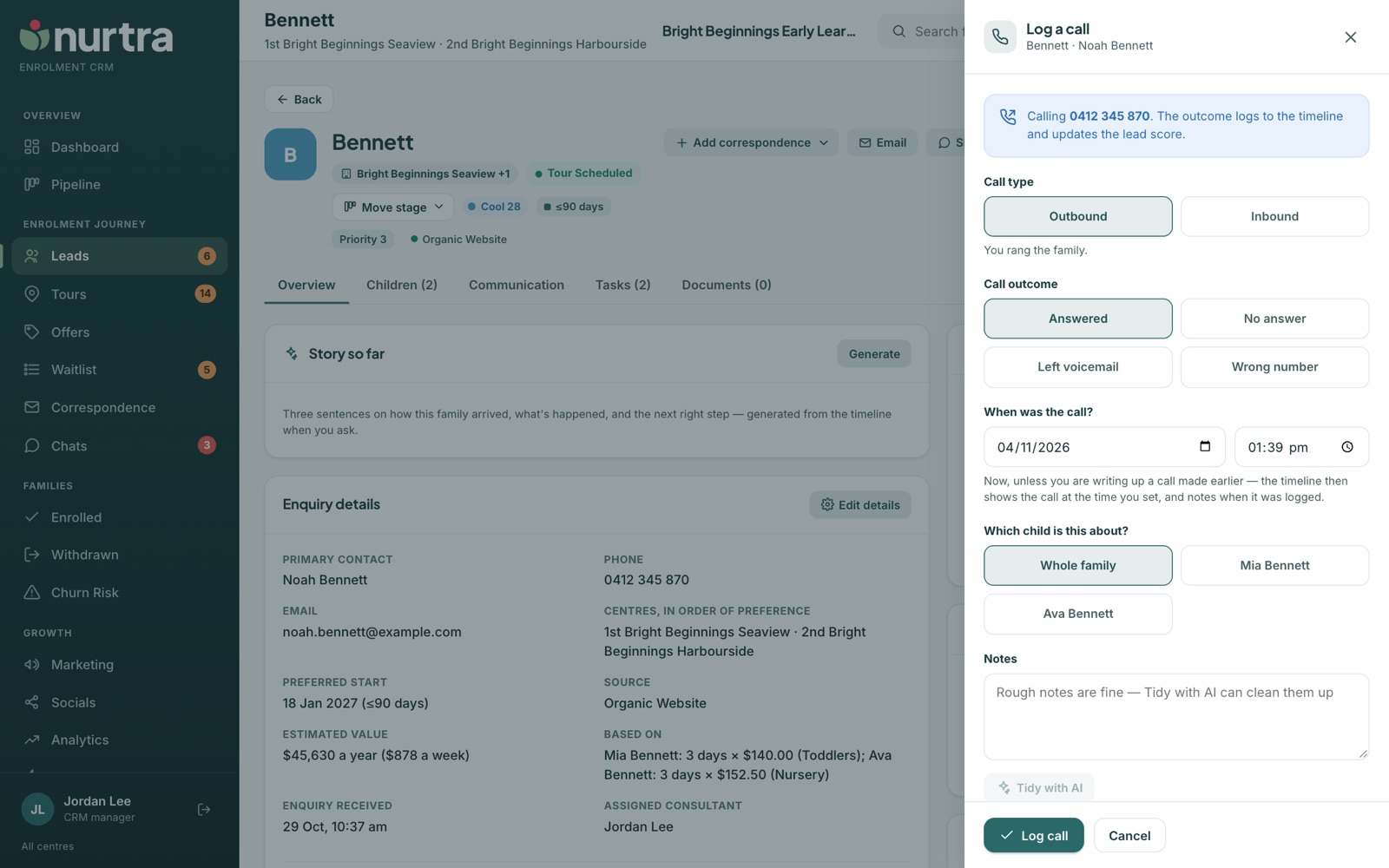
- On the family, press Add correspondence → Log call.
- Choose Outbound (you rang them) or Inbound (they rang you).
- Pick the outcome: Answered, No answer, Left voicemail or Wrong number.
- When was the call? is pre-filled with now. Set it back to write up an earlier call.
- Choose which child it's about, and type your notes. Tidy with AI turns rough notes into a clean outcome and follow-up, and pre-dates a "call back Tuesday" task.
- Pick a follow-up task (Call, Email, SMS, Add to OWNA, Tour, Other) or No follow-up, then Log call.
Missed callsAn inbound call logged as missed or voicemail creates a Return the family's call task due in two hours. A manager can switch this off in Automations.
Send an email
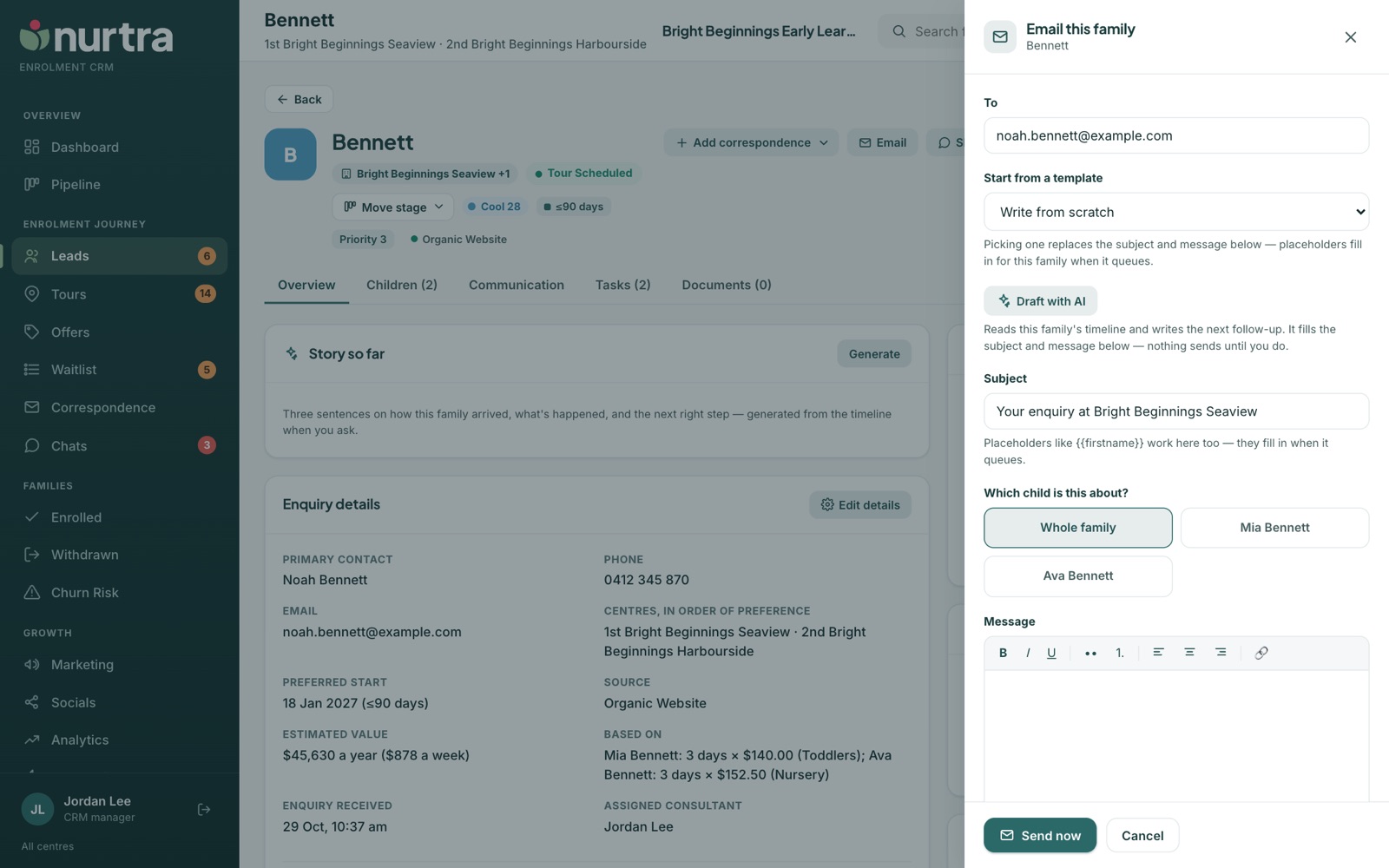
- Press Email on the family.
- Start from a template, or press Draft with AI to write a first draft from the family's own record.
- Choose which child it's about, and insert placeholders such as
{{parentfirstname}}or{{tourdate}}from the chips. - Optionally add a survey and attachments from the file library.
- Choose Send now or Schedule.
- Emailing a brand-new enquiry moves them to Contacted automatically.
- The timeline marks each email opened or not yet. Correspondence shows open time and link clicks.
- Every email goes out in a branded layout with the centre's logo.
Send an SMS
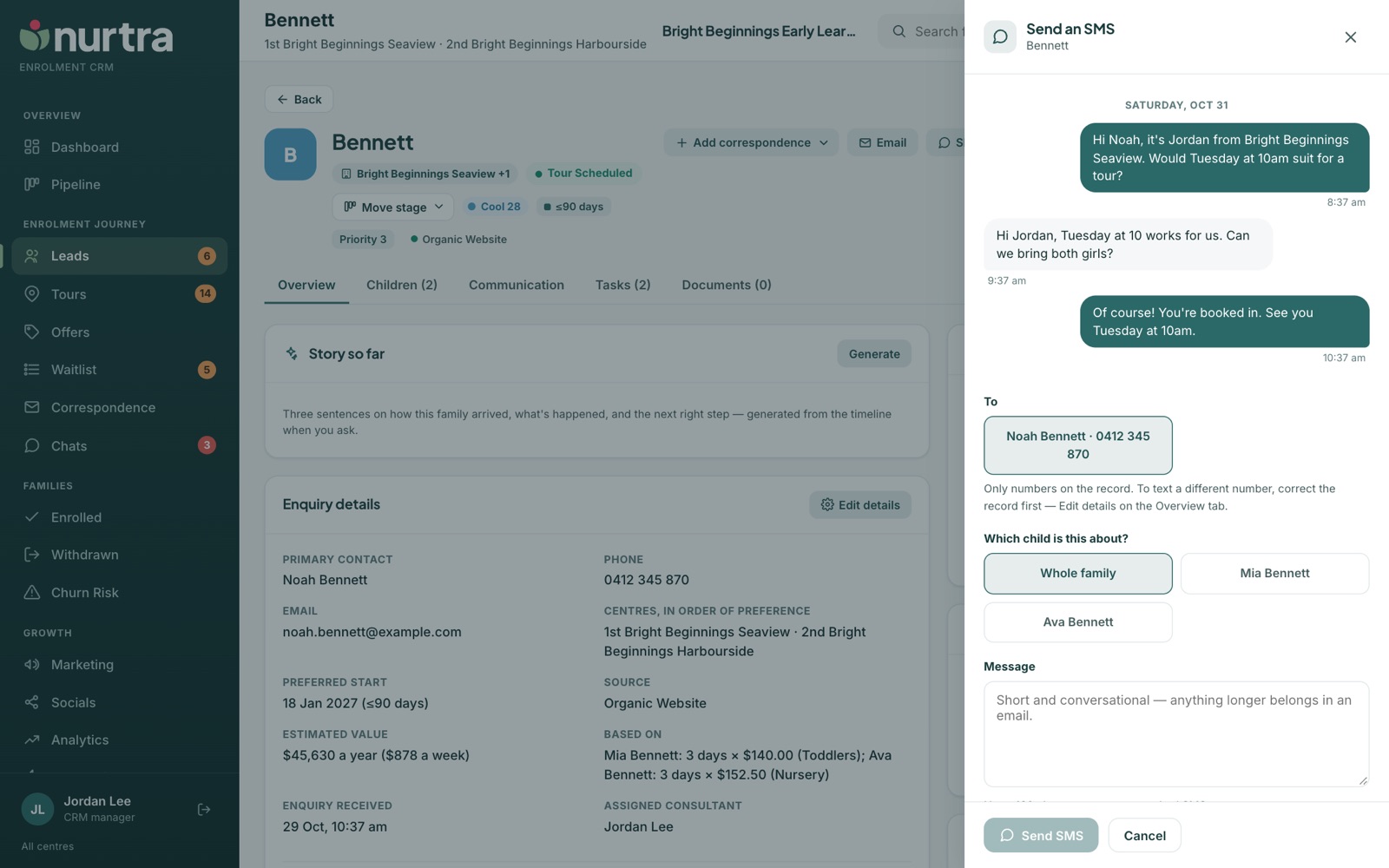
- Press SMS.
- Pick the guardian to text and which child it's about.
- Start from a template or type your message. Keep it to one standard text (160 characters).
- Press Send SMS.
Paste in an email
For replies that arrived in your own inbox: Add correspondence → Paste email. Choose who wrote it, the subject, when it arrived and the child, paste the message, add a follow-up if needed, then Add to the record.
Consultant notes
Add correspondence → Consultant notes updates the standing notes on the family's Overview. Each change is dated on the timeline.
Updated 2026-11-06 · nurtra.ai