Tours
Book, run and record centre tours. Families can also book and reschedule their own tours from the website.
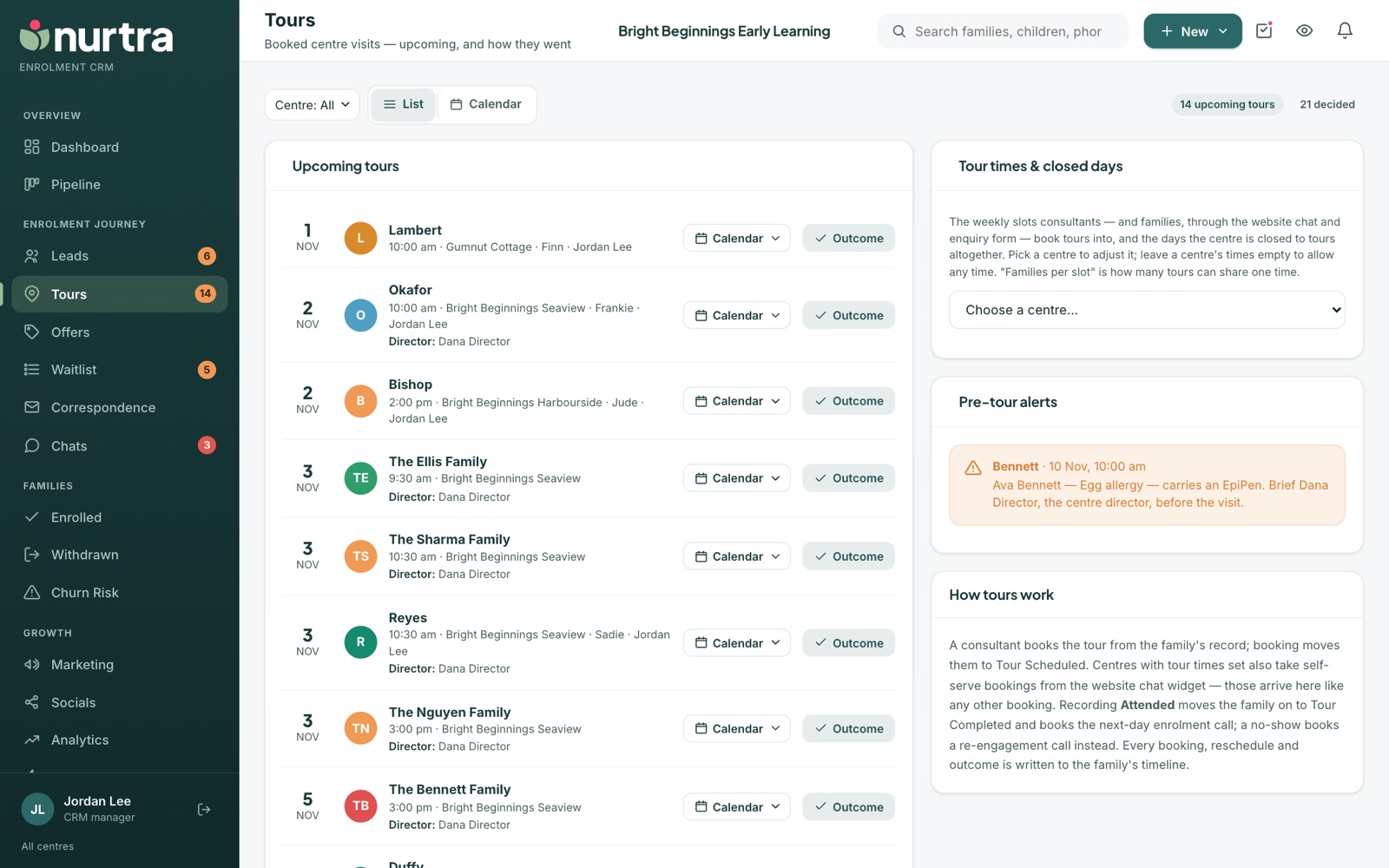
The Tours page
- List view: upcoming tours with family, time, centre, child, consultant and the director in charge, each with Calendar and Outcome buttons. Recent outcomes are listed below.
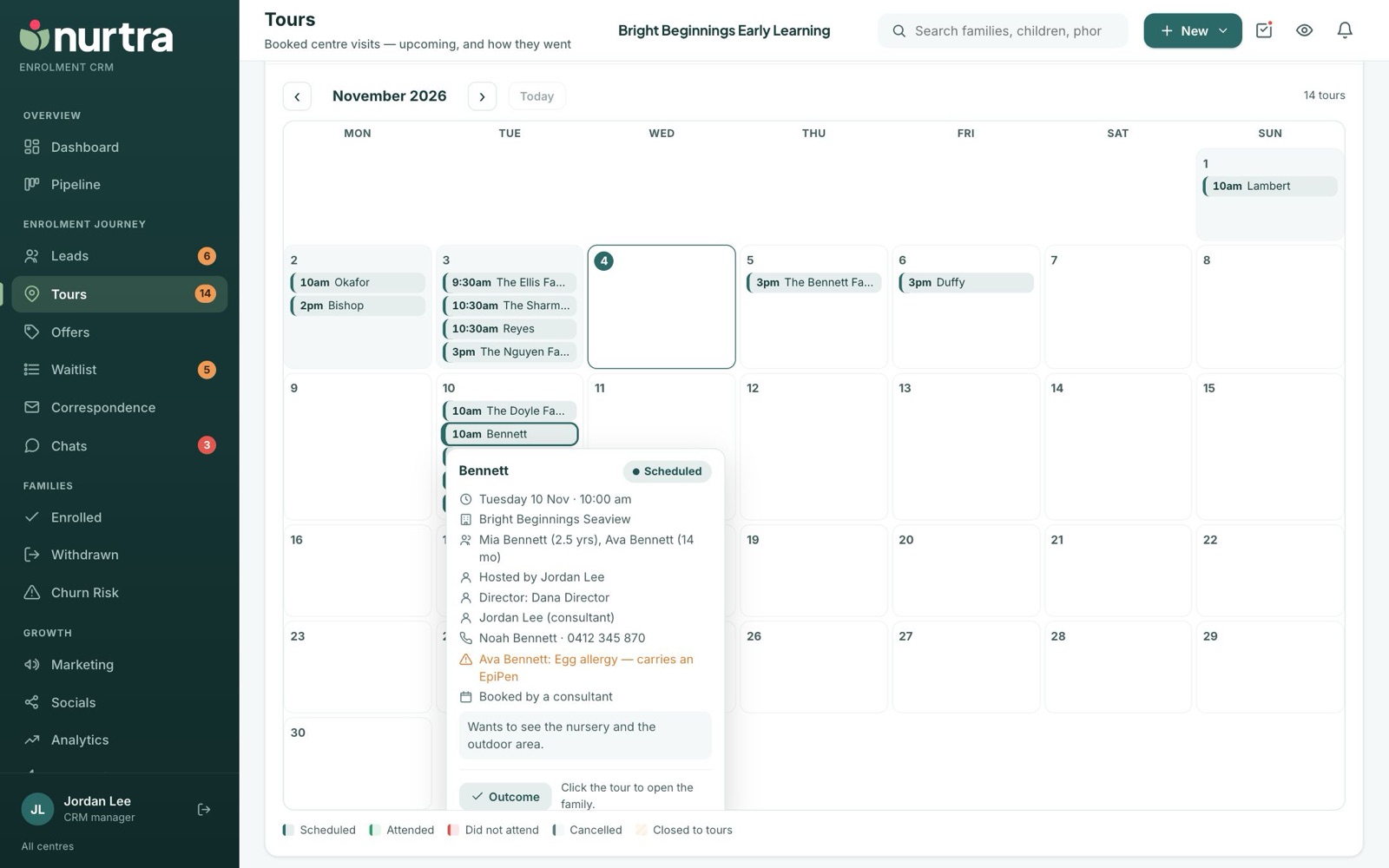
- Calendar view: the month with each tour coloured by how it went, closed days shaded. Hover a tour to see the centre, children, host, phone and how it was booked, with an Outcome button.
- Filter by centre at the top.
Book a tour
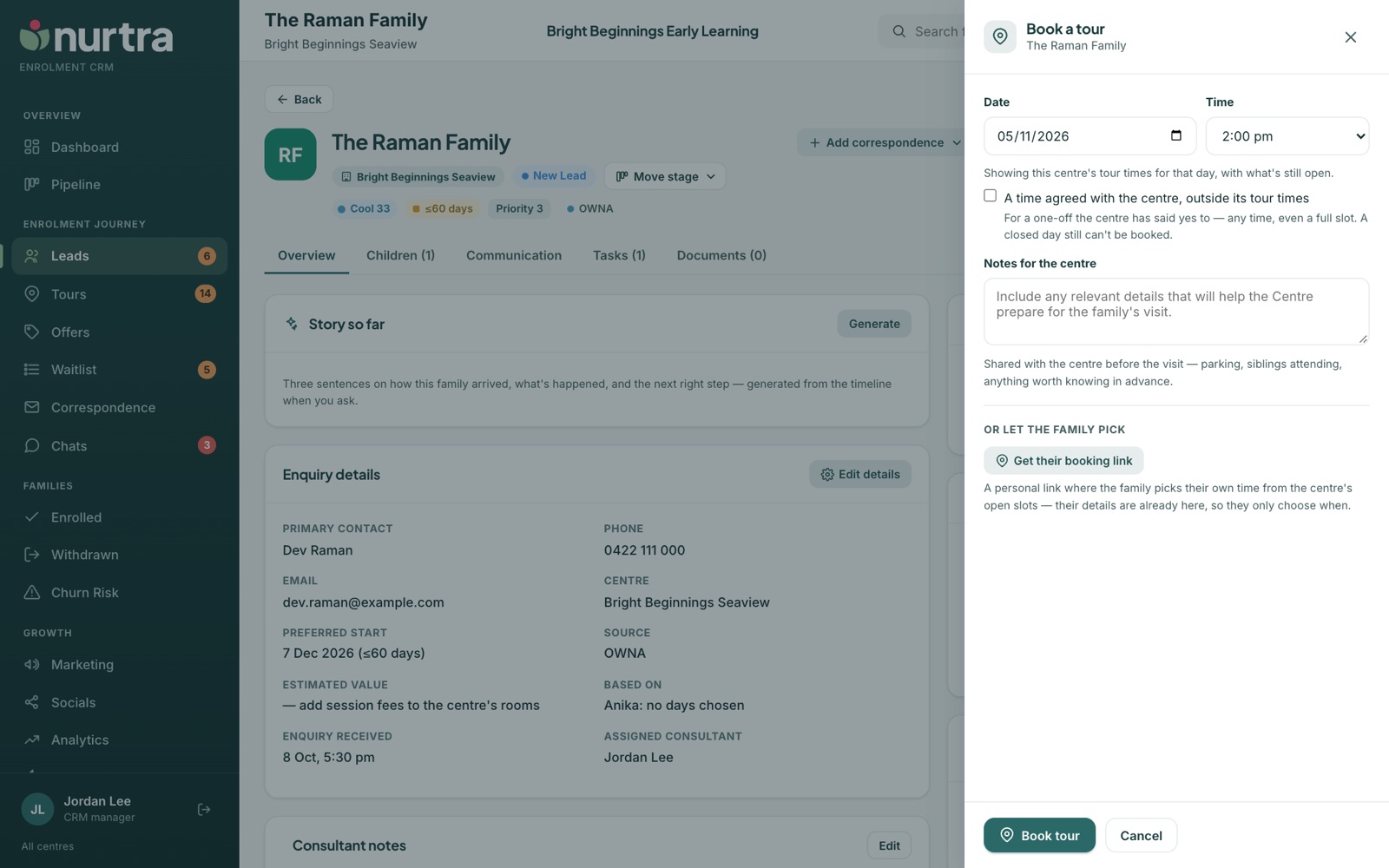
- On the family, press Tour.
- Pick a date and time. Centres with tour times show only those slots: full slots are greyed out, and shared slots show "2 left". Centres without tour times show an open 15-minute grid from 6 am to 7:45 pm.
- Add notes for the centre (they go on the director's task).
- Press Book tour.
- The family moves to Tour Scheduled automatically.
- With the automation on, they get a confirmation email with a calendar invite. Rescheduling updates their calendar event.
- Every director at the centre gets a Host the centre tour task due at the tour time.
- Get their booking link creates a personal link so the family picks the time themselves.
- Two consultants can't double-book a slot by accident. Booking a full slot takes the tick below.
A time the centre has agreed to
Some centres agree to a one-off time outside their tour times. Tick A time agreed with the centre, outside its tour times in the drawer and every time of the day can be picked, a full slot included. The timeline records that it was a one-off. Closed days still can't be booked. The same tick is under Rescheduled when you record an outcome.
Touring two centres
A family looking at more than one centre can tour each one. In the drawer, pick the other centre under Which centre?. The drawer shows the tour already booked ("Also booked: …") and books the second beside it. Each centre's tour has its own confirmation, calendar entry, reminder and director's task, and the Tours page lists both. Booking the same centre again moves that centre's tour.
Record the outcome
- Press Outcome on the Tours page or the family. A family with two tours booked is asked Which tour? first.
- Choose Attended, Did not attend, Cancelled or Rescheduled.
- Attended moves the family to Tour Completed, and whatever your Tour Completed automation sets up follows. Nothing else is booked.
- Did not attend books a next-day re-engagement call.
- Every booking, reschedule and outcome is written to the timeline.
Tour times and closed days
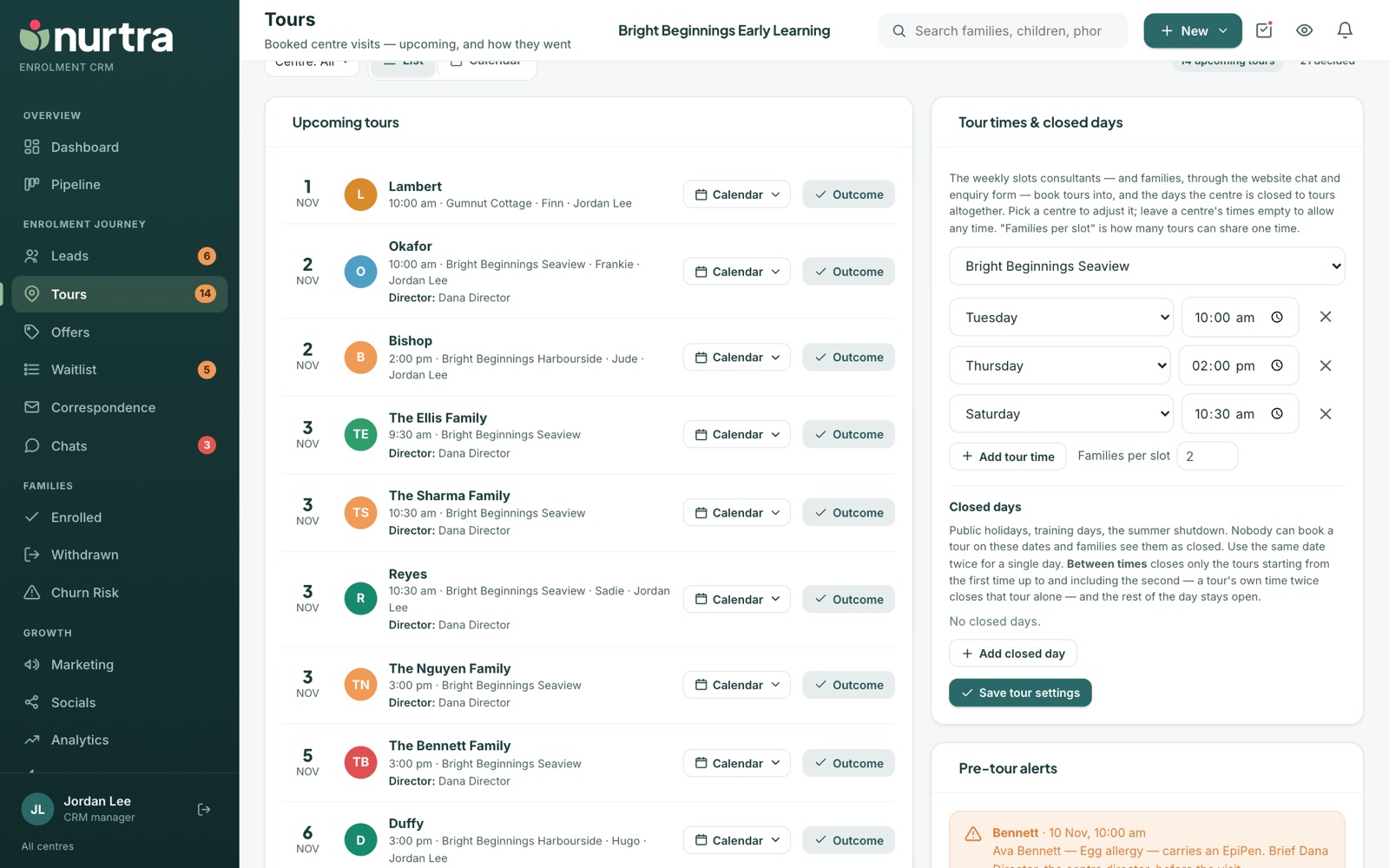
- Scroll to Tour times & closed days and choose a centre.
- Set the weekly slots and Families per slot. Leave a centre's times empty to allow any time.
- Add closed days (public holidays, training days, shutdown). A closed day can cover just part of a day using Between times.
Nobody can book on a closed day, by any channel. Directors set times for their own centres; managers for any centre.
Families who manage their own tour
- Every confirmation and reminder email has a manage link where the family can move or cancel the tour.
- Nurtra updates itself: the timeline records the change, a cancellation books a follow-up call, and reminders re-arm for the new time.
- Turn on the Family changed their tour automation to be emailed when it happens.
Updated 2026-11-06 · nurtra.ai