Enrolment journey
Pipeline board
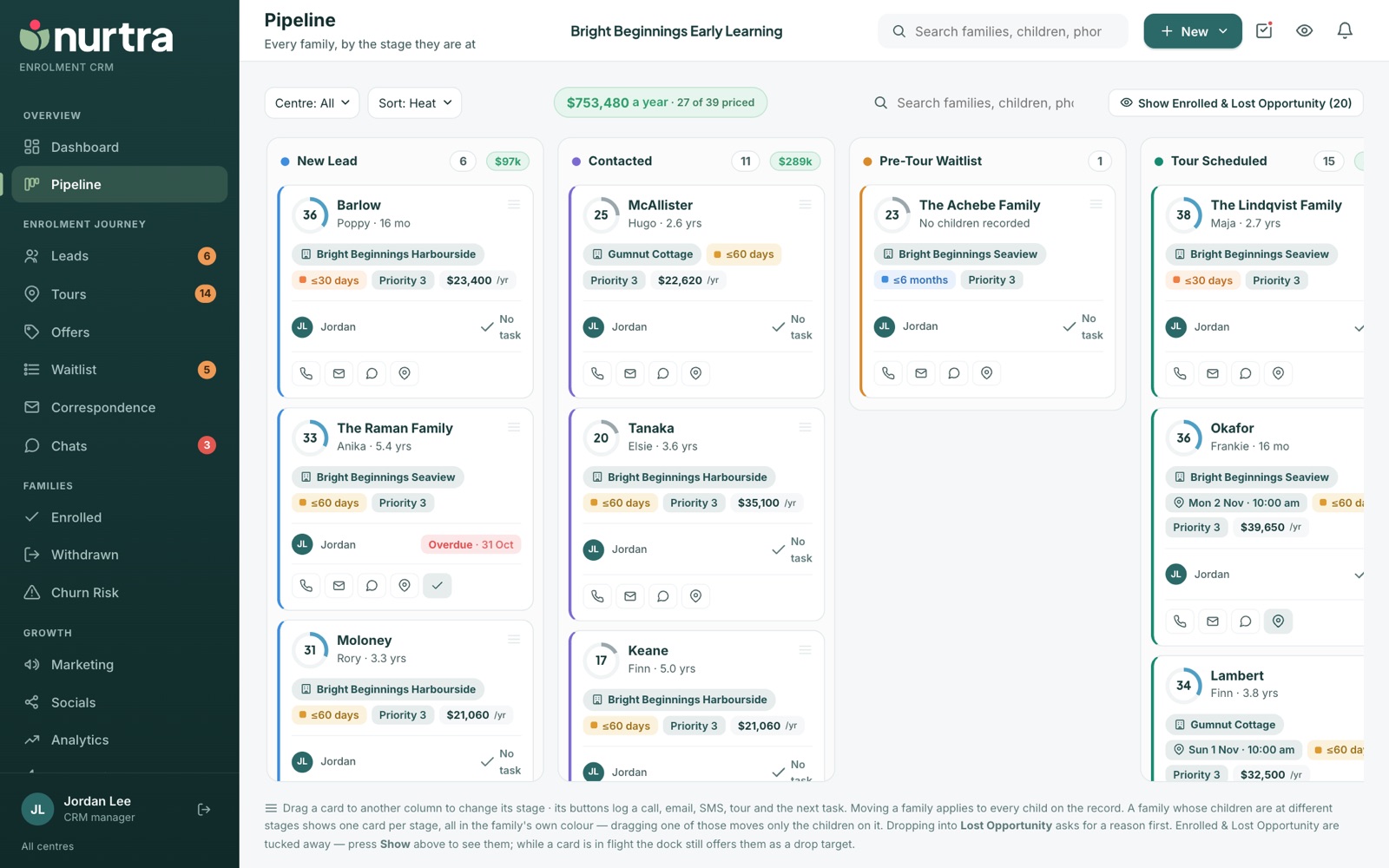
Every active family as a card, in a column per stage. Drag a card to change its stage, or use the card's buttons to log activity without opening the family.
The toolbar
- Centre and Brand narrow the board. Counts and totals follow.
- Sort orders every column the same way: heat (default), next task due, name, value, newest or oldest enquiry. Your choice is remembered.
- The annual value total shows the fees a year across the board and how many families are priced.
- Show Enrolled & Lost Opportunity brings back the two columns that are hidden by default.
Reading a card
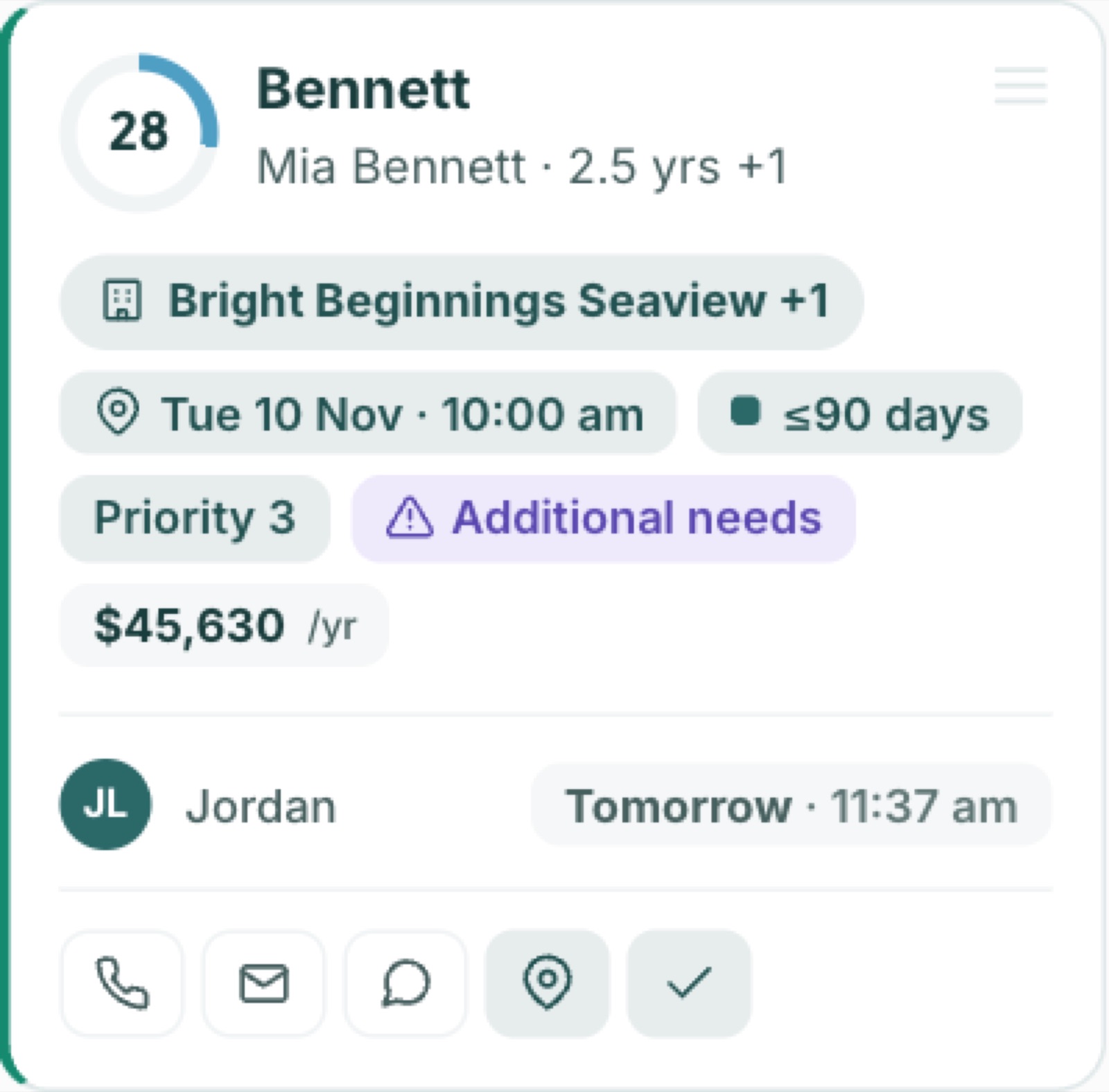
- Lead score, family name, child and age, centre (and +1 if they named more).
- Tour day and time, once booked.
- Start window, priority, attributes, risk and additional-needs pills.
- Value a year, the assigned consultant, and the next task with its due badge.
- Buttons along the foot: log a call, email, SMS, book the tour or record its outcome, complete the next task. Tinted buttons show what's already waiting.
Move a family to another stage
- Drag the card to another column. The timeline records who moved the family, when and how.
- Dropping into Lost Opportunity asks for a reason and an optional note about what the family said.
- While you drag, a dock at the bottom offers Enrolled and Lost Opportunity as drop targets even when those columns are hidden.
Siblings at different stages
- Moving a family moves every child on the record.
- If children are at different stages, the family shows one card per stage, all in the family's own colour.
- Dragging one of those cards moves only the children on it.
Moving to LostMoving a family to Lost Opportunity closes all their open tasks. The reason and note then head the family's page and appear in Reports under Where families were lost.
Updated 2026-11-06 · nurtra.ai