Enrolment journey
Offers
Send an offer of enrolment, track the family's answer and complete the enrolment when forms arrive.
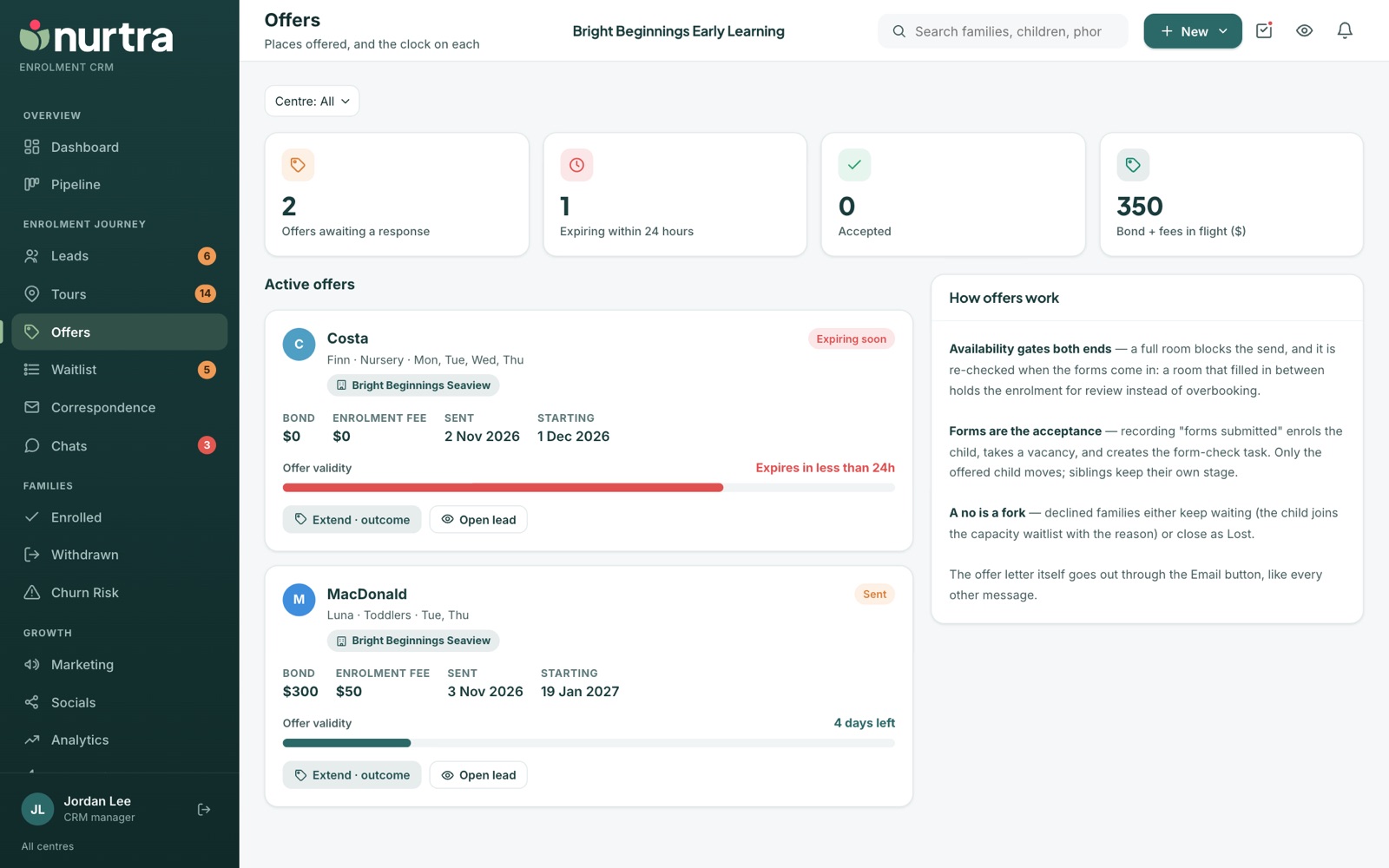
The Offers page
- Tiles: offers awaiting a response, expiring within 24 hours, accepted, and bond plus fees in flight.
- Each offer card shows the child, room, days, centre, bond, enrolment fee, sent and starting dates, and validity.
- Extend · outcome opens the offer drawer. Open lead opens the family.
Send an offer
- On the family, press Offer.
- If the family asked about more than one centre, pick the centre first.
- Choose the child, room, days and start date. Each room shows its vacancy count.
- Check the bond and enrolment fee. They start from the centre's offer defaults (see Manage Centres), and you can change them for this family. A fee set to 0 is left out of the letter.
- Tick to include the centre's enrolment form link, if it has one.
- Send. The letter carries an accept-online link.
Siblings
Each child has an offer of their own. Under Which children is this offer for?, tick every sibling being offered a place and the button reads Send 2 offers. The family can accept for one child and not the other, and each offer is extended, accepted or declined by itself. The family's header shows which child has an offer open.
Before and after school care
For OSHC, one offer can cover both sessions. Pick the first room (for example BSC) and its days, then press Add a session for the second room (ASC) with its own days. The letter and the accept page list each session, and recording forms submitted takes a place from each room.
Full roomsVacancy counts are today's, not the start date's. You can still offer a room showing full; Nurtra warns you first and notes it on the record.
When the family answers
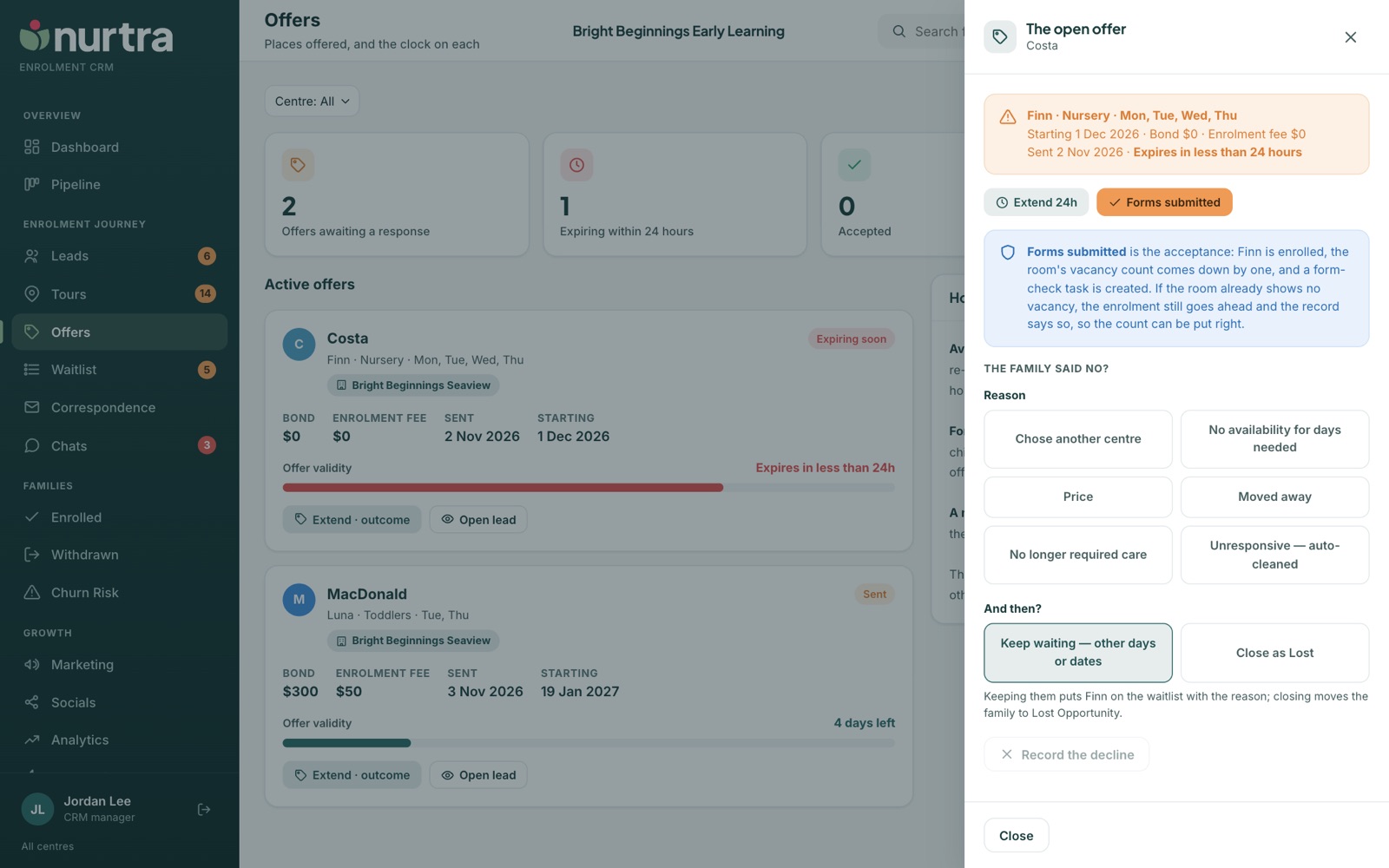
- Accepted online: one click from the family records their yes and books your follow-up call.
- Forms submitted: records the paperwork. The child moves to Enrolled, the vacancy count drops, and a forms-check task is created. Only the offered child moves; siblings keep their stage.
- Extend 24h: gives the family more time.
- Declined: pick a reason, then choose Keep waiting (the child joins the waitlist with the reason) or Close as Lost. Press Record the decline.
Updated 2026-11-06 · nurtra.ai